Email Accessibility: A WCAG Checklist for Marketing & Transactional Emails
99.97% of emails contain serious accessibility issues. The EAA now covers B2C email marketing — here's the WCAG checklist every email team needs in 2026.
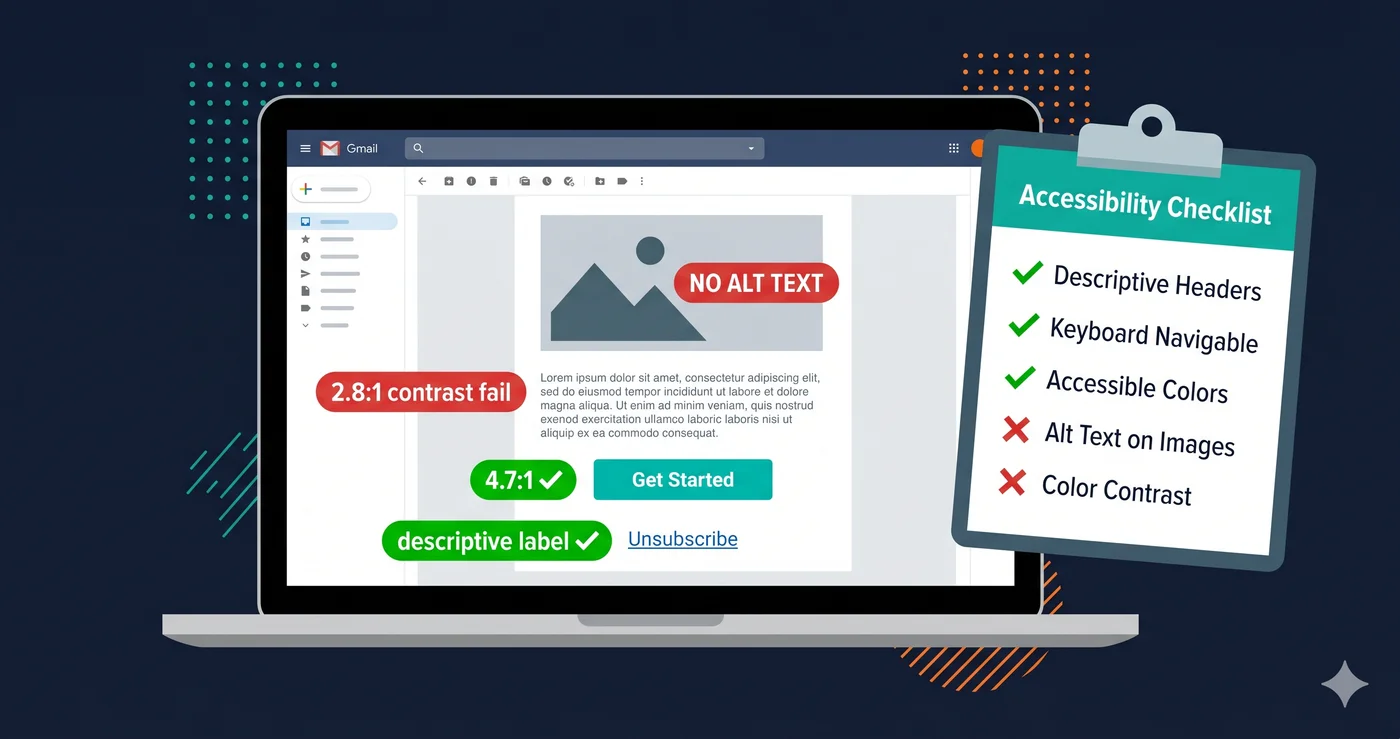
Your latest email campaign has a 99.97% chance of containing at least one serious accessibility violation. That's not a projection — it's the finding from the Email Markup Consortium's analysis of emails actually sent by real brands. The most common failure is also the easiest to miss: 67.01% of emails fail the basic requirement of declaring a language, making them nearly incomprehensible to screen readers that depend on that tag to know how to pronounce words correctly.
Email accessibility isn't a niche concern. It's a legal requirement that has expanded dramatically in 2026. The European Accessibility Act, in enforcement since June 28, 2025, applies to any B2C brand communicating with EU users — which includes email. In the US, the ADA's requirements for equal access extend to digital communications that are part of a covered business's services. Your welcome email, your abandoned cart sequence, your password reset message — they're all in scope.
What the Law Actually Requires for Email
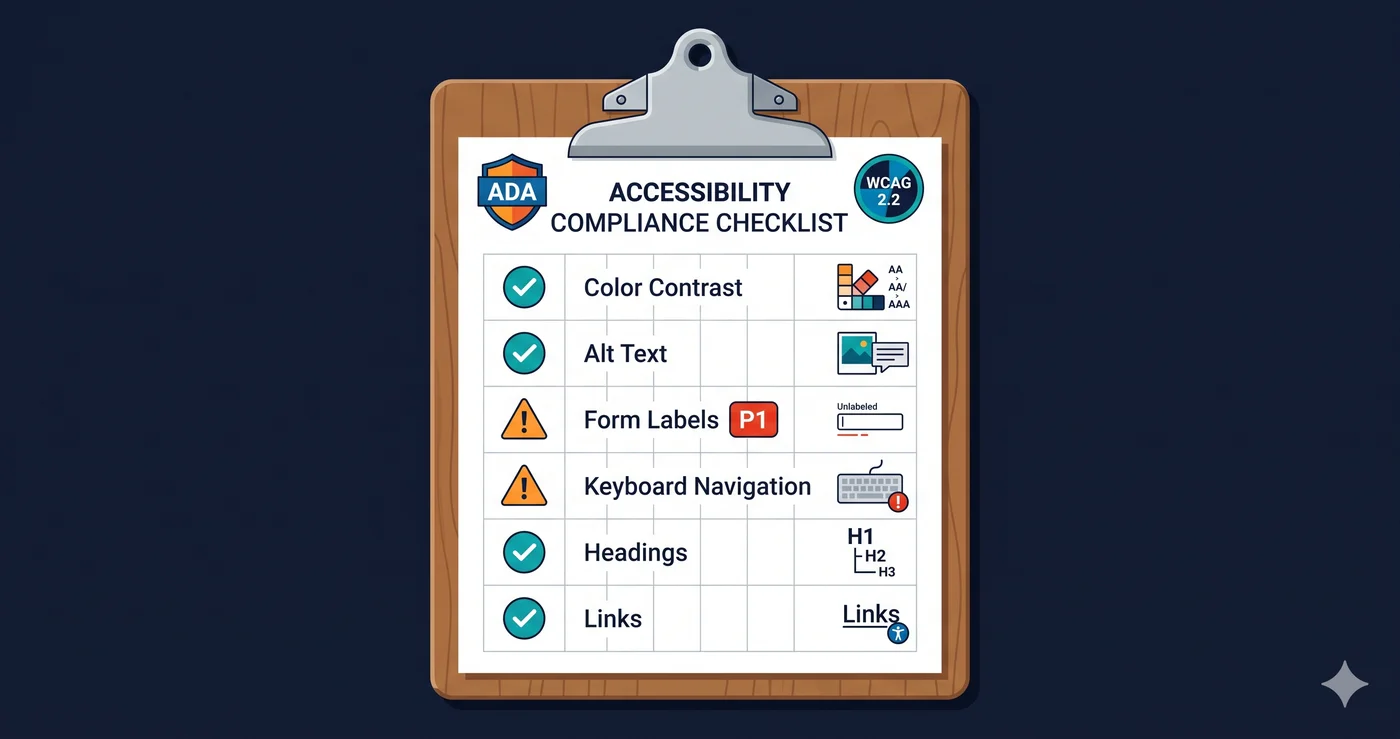
The ada compliance checklist for emails is shorter than for websites, but the enforcement gap is larger because almost no one is checking. Here's the legal framework:
ADA Title III (US private businesses): Emails that are part of a commercial relationship must be accessible to users with disabilities. Courts interpret this as covering marketing, transactional, and notification emails sent by businesses covered by Title III.
European Accessibility Act (EU): Effective June 28, 2025. Applies to B2C email communications from businesses selling digital products or services to EU consumers. The WCAG 2.1 AA standard (via EN 301 549) is the benchmark.
Section 508 (US federal): Government agency emails and federally-funded communications must meet WCAG 2.1 AA.
The practical standard across all three frameworks is WCAG 2.1 Level AA, applied to email content.
The Email Accessibility WCAG Checklist
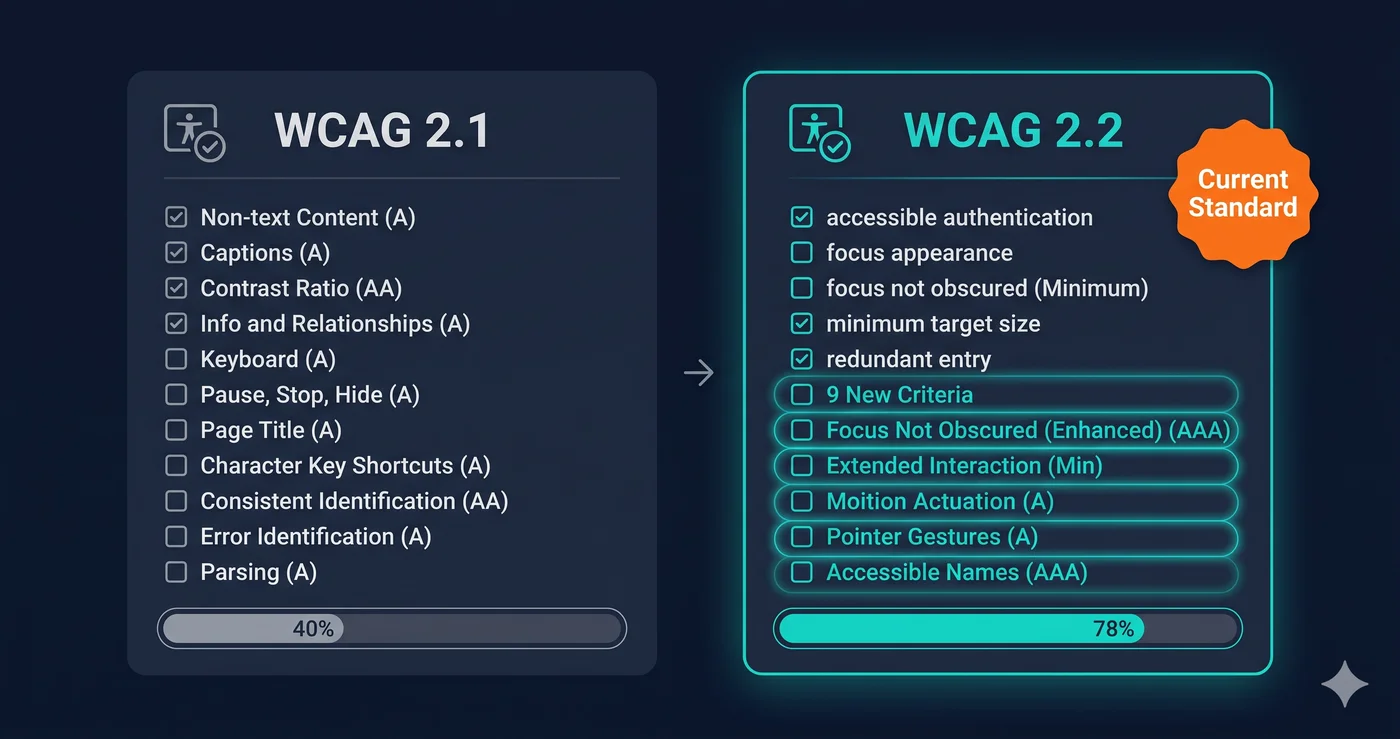
This checklist covers every WCAG 2.2 AA criterion that has a meaningful application to email content. Use it before every send.
Criterion
WCAG Code
Check
Common Failure
Language of page declared
1.3.1 / 3.1.1
in email
67% of emails fail this (EMC 2025)
Meaningful alt text on images
1.1.1
All non-decorative images have descriptive alt text; decorative images use alt=""
Generic alt text like "image" or "banner"
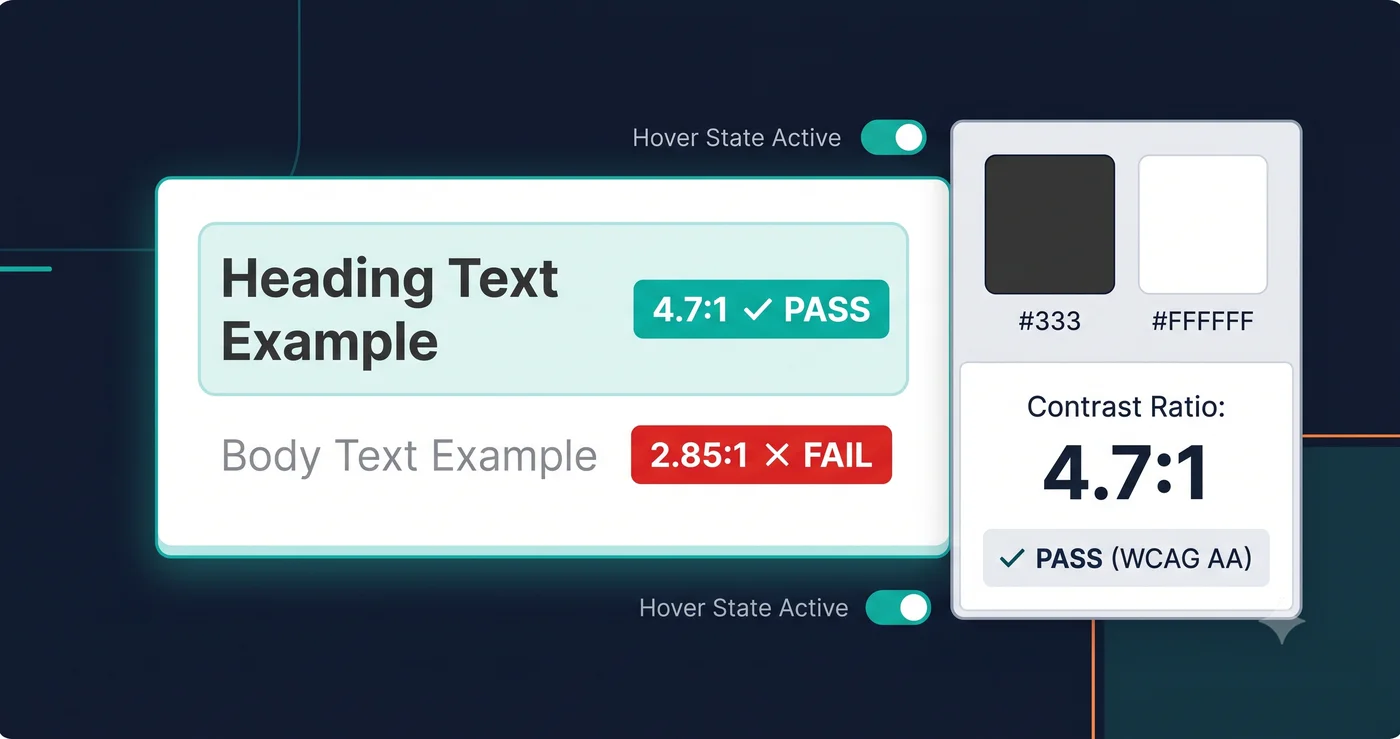
Color contrast — body text
1.4.3
4.5:1 ratio for text under 18pt
Light gray text on white background
Color contrast — large text / headings
1.4.3
3:1 ratio for text 18pt+ or 14pt bold
Brand colors with insufficient contrast
Color contrast — buttons (CTA)
1.4.11
3:1 for UI components against background
White text on pale brand color
Meaningful link text
2.4.4
No "click here", "read more", or bare URLs as link text
"Click here to shop"
Logical heading structure
1.3.1
<h1> for main email heading, </h1><h2> for sections
Multiple </h2><h1> tags or no headings
Text resizable to 200%
1.4.4
Email renders correctly at 200% zoom
Fixed-width containers that break on zoom
Captions on embedded video
1.2.2
All auto-play or linked video content has accurate captions
GIF-like video without captions
No content relies on color alone
1.4.1
Error states, status, and CTAs use text or icon, not just color
"Required fields shown in red" with no label
Touch targets on mobile
2.5.5 / 2.5.8
CTA buttons minimum 44×44px on mobile
Small text links used as primary CTA
Screen reader-only text for icons
4.1.2
Icon-only buttons have visually hidden label text
Social media icons with no text label
Plain text fallback
Accessibility best practice
Multipart email with text/plain version
HTML-only email
Subject line is descriptive
2.4.2 / best practice
Subject line conveys email purpose
"Check this out!"
The Most Commonly Overlooked Failures
Images that are "off" when images are disabled. Many email clients block images by default. If your entire email is one large image — a common design pattern for promotional emails — screen reader users and users with images disabled receive nothing. Every meaningful image needs alt text; every layout that depends on images for structure needs text-based fallback content.
CTA buttons that only work as images. "Shop Now" rendered as an image is invisible to screen readers unless the image has the correct alt text AND the link around it has a meaningful accessible name. The ada compliance checklist approach: use live text buttons (HTML + CSS) rather than button images whenever possible.
Inline font sizes below 14px. Most email clients do not reliably honor font-size defined in `` blocks. If your inline CSS sets body text to 12px, users with low vision who rely on browser zoom cannot resize it reliably. Use a minimum of 14px for body text (16px is recommended by most accessibility guidance).
Preheader text that reads oddly with screen readers. Many email templates use visually hidden preheader text via font-size: 0 or overflow: hidden. Some screen readers still read this text at the top of the email — before the subject line content. If your preheader is "View this email in your browser. Unsubscribe.", that's the first thing a screen reader user hears.
Checking Your Email Templates Against WCAG
Unlike web pages, email HTML cannot be run through a live DOM accessibility checker in the same way. Your options for checking email accessibility before sending:
Manual code review against the checklist above. Review the raw HTML of your template, not just the rendered preview.
Email-specific tools like Litmus Accessibility Checker and Dyspatch can flag contrast ratios, missing alt text, and heading structure issues before send.
Web surface checking with ADAGuard. The confirmation and landing pages your emails link to — unsubscribe pages, account settings, product pages — are full web surfaces that a wcag compliance checker can scan in seconds. Run your email click destinations through adaguard.io to ensure the full user journey from email to conversion is accessible. ADAGuard's 23 check categories cover ~78% of detectable WCAG violations on those destination pages.
Building Accessibility Into Your Email Workflow
The ada compliance checklist is most effective when it's built into your email production process, not applied as a last-minute review. Practical integration points:
Template library audit. Run a one-time audit of every email template in your ESP. Identify all templates that use image-only buttons, have insufficient contrast, or lack language declaration. Fix the templates themselves — then every email sent from those templates inherits the fix.
Design token alignment. Work with your design team to define accessible color combinations at the system level. If your brand guidelines include accessible CTA colors with 4.5:1 contrast pre-approved, designers and copywriters don't need to check contrast ratios manually on every email.
Pre-send checklist. Add the 5 most commonly failed items — language declaration, alt text, link text, contrast, and subject line — as required fields in your email brief and QA process.
The EAA's enforcement is active, and major EU retailers have already received formal notices. France issued notices to Carrefour, Auchan, and Leclerc in late 2025 over inaccessible digital channels. Email accessibility is part of the same enforcement framework as website accessibility.
The 30-Second Fix
Start with the pages your emails point to. Paste any URL at adaguard.io — no signup needed — and get a WCAG 2.2 AA accessibility report in 30 seconds. ADAGuard scans live-rendered pages with JavaScript enabled, catching the dynamic content failures that static HTML checkers miss. Fix your landing pages first, then use the checklist above to bring your templates into compliance.</h1>